 SlashFlow
Use text expansion for wording you repeat; use browser autofill for saved form information; use a reviewed field mapping when selected details from a source need to go into specific destination fields. One form can contain all three kinds of work. Choose the method for each field, then read the completed form before submitting it.
The important distinction is what you are reusing: a sentence, a saved personal detail or a value from the record you are working on now. This guide helps you choose without treating every blank box as the same task.
Choose by the information you need
A repeated message: text expansion
A text shortcut inserts wording you have already saved. It suits an acknowledgement, a meeting follow-up structure or a request for missing information. For example, /enquiryack could insert a reply asking which task the reader needs help with. The shortcut does not establish who the recipient is or what was promised.
In SlashFlow, saved templates can be inserted in supported Chrome fields with active access. Start with one useful message and review its result in your actual editor. The text-shortcut setup guide explains how to create and try it.
Your saved information: browser autofill
Chrome autofill can reuse saved information such as contact details, addresses and payment information in compatible forms. Check the suggested entry before choosing it, especially when more than one address or account is saved. Availability varies by feature and region; see Google’s current autofill guidance.
If you are filling out your own shipping address, the browser’s saved address may be enough. Installing a text-expansion tool solely to type that address is not necessarily useful. If you are entering someone else’s details, your own saved identity is the wrong source.
Details from the current record: reviewed field mapping
A field mapping answers “which reviewed value belongs in this destination?” A full name might go into Contact name, while a confirmed employer goes into Company. SlashFlow’s mapped-form workflow lets you select source values for supported destination fields and review existing values before filling.
This is different from inserting a paragraph. A reusable mapping can remember where values belong, but each new record still needs its own source review. It is not a native integration with every CRM or a guarantee that every form is supported. Follow the mapped-fields walkthrough for the actual setup.
One enquiry form, three separate decisions
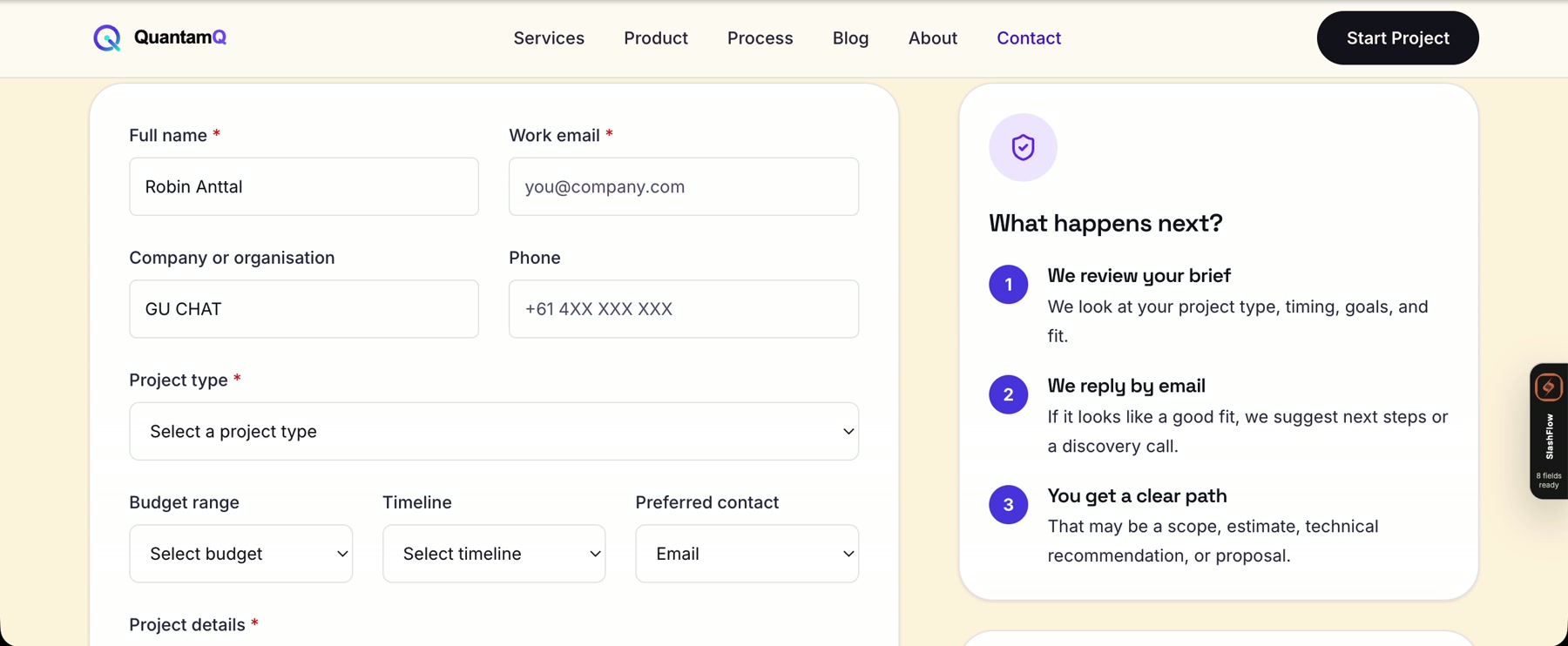
Here is a fictional example, not a customer result. A recruiter is preparing an internal enquiry for Morgan Lee at Northbank Studio. The reviewed source shows Morgan’s name and employer. The destination has Contact name, Company, Email and Notes fields.
- Contact name and Company: compare Morgan Lee and Northbank Studio with the current source. Map those reviewed values only if the destination fields mean the same thing. A billing-company field could be asking a different question.
- Email: no verified email is available. Leave it blank or unchanged and obtain the detail through the normal process. Do not accept the recruiter’s own browser autofill suggestion or infer an address from the company name.
- Notes: use a saved structure for the enquiry, then write the specific reason and requested next step. Repeated wording belongs in the template; facts about Morgan belong to this particular record.
- Final review: read the entire form, including any values already present. Filling visible fields has not established that a record is saved. Use the destination’s own save or submit control only after checking it.
A reusable note structure might look like this:
Purpose: [why this enquiry is being recorded]
Source checked: [source and date checked]
Confirmed details: [only the details verified]
Still needed: [missing information or question]
Next step: [requested action; say if not yet agreed]
The square brackets are manual editing prompts, not SlashFlow variable syntax. Replace every prompt before saving the record. For this example, “Still needed: a confirmed contact email” is more useful than filling a plausible-looking address.
Prevent the wrong value from becoming the default
The most useful review happens before reusing a value, not only after spotting an error. Three checks catch different mistakes:
- Whose detail is it? A saved browser identity may be yours while the form is about a candidate or customer. A captured profile may belong to the previous person you opened. Confirm the current person first.
- What does the field mean? Employer, account owner and billing organisation are not interchangeable. Leave an uncertain field unchanged rather than mapping it because its label contains “company”.
- What is already there? A populated field may contain deliberate work. In SlashFlow’s mapping review, inspect the Existing value and enable replacement only for values you intentionally want to overwrite.
Keep passwords, payment details and other sensitive information out of ordinary reply templates. Use the appropriate account or payment controls for those tasks. A reusable business note should contain only what its intended readers need.
Try one small task before expanding the workflow
- Pick one reply or one supported form you actually use. Write down what a correct result should contain.
- Choose the smallest suitable method: a saved browser suggestion, a text template or a reviewed mapping. You do not need all three.
- Try it in an unsent draft or a form you can inspect without submitting. Check existing text, the selected record and any missing values.
- Repeat with a different record. This tests whether you reused the structure or accidentally reused the first person’s facts.
- If a field is unsupported, unclear or already contains important work, complete that part manually. Do not interpret a successful insertion in one field as proof that every field worked.
For a saved template, previewing, inserting and sending are separate steps. For a mapping, saving the mapping, filling the fields and saving the destination record are separate steps. Look for the actual result of each step before continuing or retrying.
Common questions
Can text expansion and autofill be used together?
Yes, in a workflow where each has a clear job: browser autofill for your own saved details and a text shortcut for a message body, for example. Review the combined result and avoid having two tools overwrite the same field.
Does filling a form submit it?
Do not assume so. SlashFlow’s mapped-fields walkthrough leaves the destination website’s final save or submission to you. Some websites may save edits as you go, so understand the destination’s behaviour before entering real information.
Do I need a text expander if Chrome autofill already works?
Only if you have a separate job it helps with, such as reusing paragraphs or reply structures. If your repeated task is just entering your own saved address, start with the browser feature you already have.
See the difference in the recorded demos
Compare the saved-template workflow with the mapped-form example, then choose one task to try. SlashFlow requires active access and works in supported Chrome fields.
Watch the template demo → Watch mapped formsSources and scope
- Google Chrome Help: fill out forms automatically, checked 18 November 2026. Chrome’s options can change and vary by region.
- SlashFlow text shortcuts and mapped-field workflow, with the approved recorded product demos.
Written by QuantamQ Solutions Pty Limited, the maker of SlashFlow. The enquiry and note examples are original, fictional teaching examples. This guide does not claim measured time savings or universal website compatibility.