 SlashFlow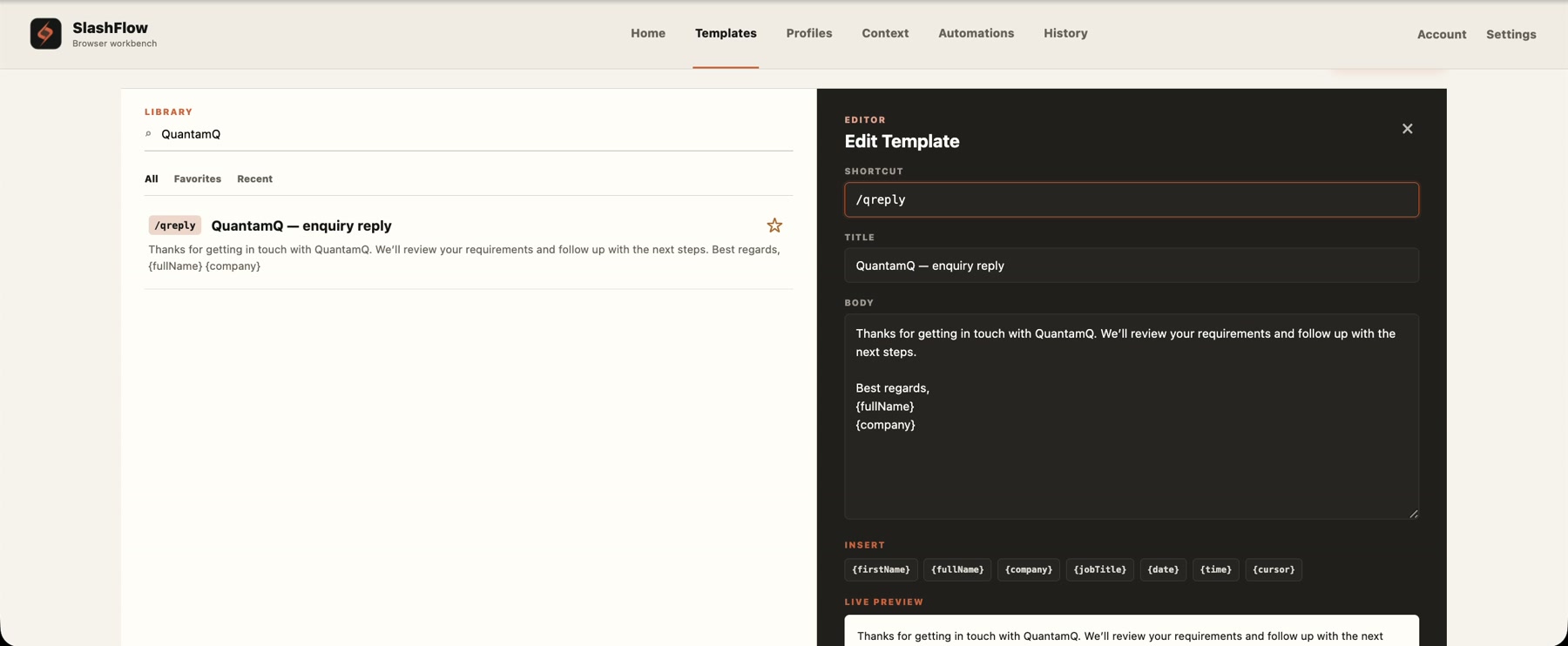
A text shortcut connects a short sequence you type to a longer piece of text. Use it for the parts of a message that repeat: a request for more information, a meeting follow-up or a next-step summary. Leave the details that change for the final edit.
This guide uses SlashFlow, a Chrome extension made by QuantamQ Solutions Pty Limited. You need desktop Chrome, a Google account and an active SlashFlow trial or subscription for text expansion. First-time eligible accounts can start a 14-day trial with a card, then pay $3.49 USD per month, including applicable tax. It renews automatically unless canceled before the trial ends. Existing plans remain unchanged.
Create your first shortcut
Install and open SlashFlow
Install it from the Chrome Web Store, open the extension and sign in with Google. Use the same Google account as your trial or subscription. Open the workspace and select Templates. The quick-start guide covers account setup.
Give one reply a shortcut
Select + New template. Enter
/sfnextin Shortcut, “Next steps” in Title, and your reusable message in Body. A good first template is short enough to review at a glance:Thanks for the update. I’ll review the details and follow up with the next steps.
Select Save template. The title helps you find it in the library; the shortcut is what you type.
Try it in a draft
Open a supported message field, place the caret where the reply belongs and type
/sfnextexactly as saved. The matching shortcut expands as you finish typing it. You do not need to press Send or submit a form to trigger expansion.Use a draft first. Check the inserted text, add the recipient’s name and make any promised next step specific. Send only when the finished message is ready.
Watch a saved shortcut expand in the real ChatGPT composer →
Three replies you can adapt
These are original examples to help you start. Copy the text into a template’s Body and choose the suggested shortcut or your own. Bracketed notes are reminders to edit manually; they are not SlashFlow variables.
Choose shortcut names you can trust
Use a consistent prefix and a memorable action: /sfdetail is easier to recognize than an unrelated abbreviation. Keep the same letter case when typing because shortcut matching is case-sensitive.
Avoid making one shortcut the beginning of another. If you save both /reply and /replylong, the shorter shortcut can expand before you finish typing the longer one. Distinct names such as /sfdetail and /sffollowup avoid that collision.
Start with a few replies you already use, then search the Templates library by shortcut, title or phrase when you need to revise them. Remove dated commitments, old links and wording that no longer matches how you work.
When a shortcut does not expand
- Check the field. Click into an editable message body or text field. Browser address bars, Chrome settings pages, password fields and some custom editors are not supported.
- Check the shortcut. Confirm it is saved and that the characters and letter case match. Try a short, plain-text template first to separate a shortcut problem from a complex message.
- Check access. Open SlashFlow and confirm that the correct Google account has an active trial or subscription. Use Refresh status if the account display is out of date.
- Reload the page. A tab that was open before you installed or updated the extension may need a refresh. Save any unfinished draft before reloading.
- Check site access. Confirm that Chrome allows SlashFlow on that site and that you have not disabled it there. If the same shortcut works in another editable field, the failing editor may need specific support.
SlashFlow supports text expansion in compatible fields, not every surface in the browser. If a field still fails, contact support@quantamq.com with the website, composer type, extension version and steps to reproduce. Leave private message content and credentials out of the report.
Build from one useful reply
Once your first shortcut works, add another only when you notice yourself repeating the same wording. Keep the reusable part general and the final message specific to the person and situation.
For work that also involves reusing page details, explore context capture and reviewed workflows. For role-specific ideas, visit recruiting or sales. Text templates are a useful first step; you do not need to configure a workflow to use them.
See the steps in action
Watch the template demo, then create one reply you will use this week.
Watch the template demo →