 SlashFlow
To map captured details into a browser form with SlashFlow, create a Manual / Custom page workflow in Automations and choose Mapped page fields. Capture and review the source, select the workflow, then match each destination field to the correct captured value. Use Save mapping & fill, check the result and complete the destination website's own save or submit step yourself.
This is useful when you repeatedly move a small set of details between a page and a form you are allowed to use. A reusable mapping remembers where values belong. It does not make every website compatible, verify the facts for you or turn a browser form into a native CRM integration.
Plan the fields before filling
Start with two or three fields whose meaning is clear. A person's employer belongs in an employer or company field; it may not belong in the billing organisation field of an unrelated account. Similar labels do not always mean the same thing.
Use this short checklist for each destination field:
- Identity: does the captured value belong to the person or company this form is about?
- Meaning: does the destination label ask for that exact detail?
- Evidence: did you confirm the value on the source page, or is it missing or ambiguous?
- Existing work: is the destination empty, or does it already contain a value you should preserve?
For example, map a reviewed full name to Contact name and a confirmed employer to Company. Leave Email unchanged if you did not capture a verified email. Choose a project category or consent option yourself instead of assuming a profile tells you the answer.
Create the reusable workflow
- Install SlashFlow in desktop Chrome and sign in with active access. The quick-start guide covers account setup.
- Open the SlashFlow workspace, choose Automations, then + New workflow.
- Give the workflow a specific name, such as Contact details to enquiry form. Use Run when I choose Run as the trigger for this walkthrough.
- Choose the relevant source type, or Any page if the workflow should accept different supported page types. An optional source-domain restriction can narrow where it runs.
- Set the destination to Manual / Custom page. Enter the destination address in Target website or form URL (HTTPS) and choose Mapped page fields under Use captured data as.
- Select Save workflow. A saved workflow sets up the destination; you still need to capture and review the details before a transfer.
Watch the recorded workflow setup to see the Automations workspace and mapped-fields option.
Review the source and open the destination
Return to the source page and capture the current context. Open Review & Transfer, compare the captured fields with the visible source, and keep only the details you intend to reuse. The profile-review guide provides a name, role, company and location checklist.
Choose Choose Workflow, select your saved workflow, and review the source, destination and selected fields before choosing Confirm Transfer. Check the destination page that opens. A successful handoff is not a saved record.
If you navigated to another person or the capture expired, capture and review the current page again. Do not try to carry old details into a new person's record.
Match the fields, then fill
In the destination's Review field mapping panel, check both the destination label and the proposed source value. Each mapping is a decision about meaning, not just a matching word.
- For each field you want to fill, select the corresponding reviewed source value.
- Choose leave unchanged for fields that do not have a suitable value. An ambiguous field may be unavailable for mapping; complete it manually.
- Read any displayed Existing value. Leave Allow replacing existing values in selected fields unchecked unless you deliberately want those selected values replaced.
- Choose Save mapping & fill. Check the resulting form and any field-count or error message.
- Complete missing details, dropdowns and any required choices. Review the full record, then use the destination website's own save or submit control when you are ready.
A mapping can be saved even when a fill cannot finish. If you see an error, inspect the actual form before retrying; do not assume that every field is blank or that the destination has stored a record.
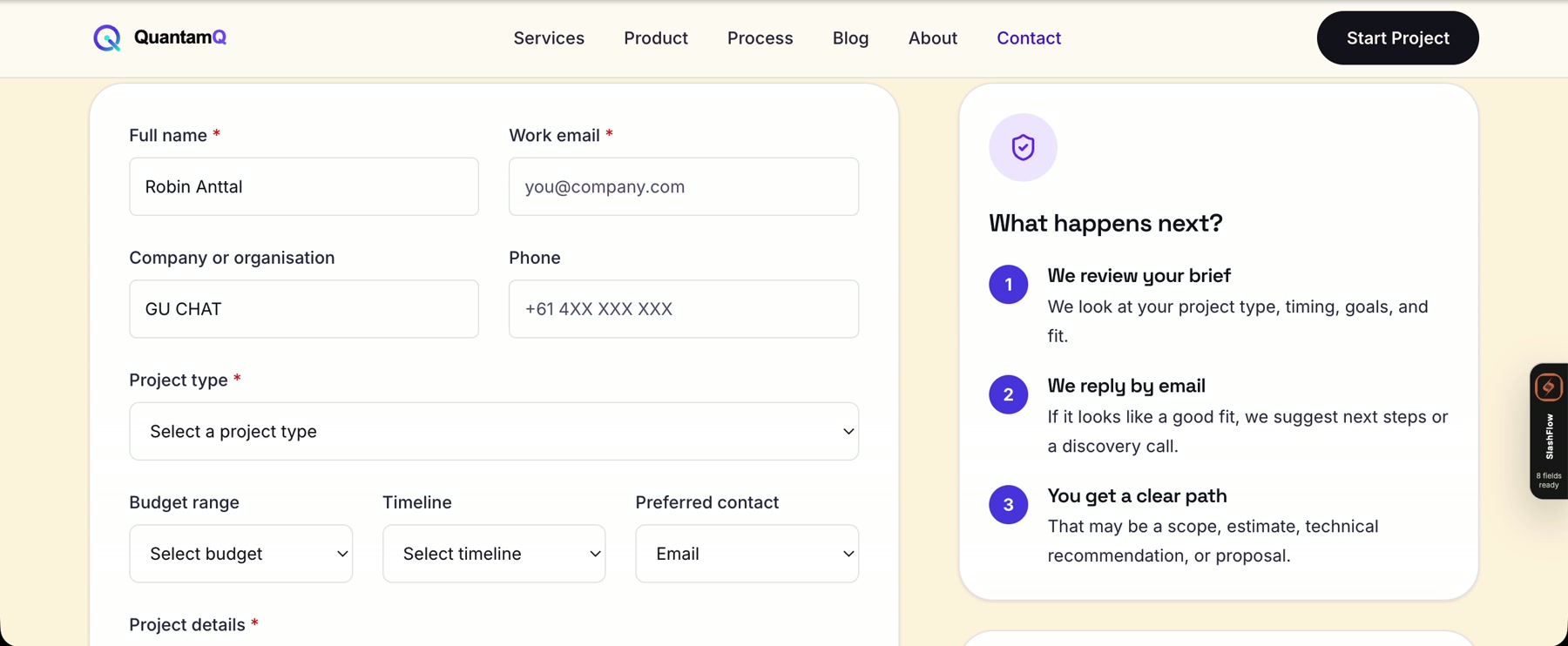
Watch the recorded forms demo. This shows a particular supported form, not a guarantee that every site's fields will behave the same way.
Reuse the mapping with a new record
For the next record, capture the new source and repeat the review and workflow selection. SlashFlow can reuse saved destination mappings, but the new values still need your attention. A mapping is reusable; a person's details are not a reusable default for everyone.
Check the destination labels again if the website has changed. A redesigned form may remove, rename or duplicate a field. If the mapping is unclear, leave that field unchanged and fill it manually rather than forcing an old match.
When to stop and complete the form manually
- No supported editable fields: confirm you opened the actual form, not its summary or read-only view. Some custom controls and embedded forms are outside the supported flow.
- An existing value remains: review whether it should stay. Replacing existing values is an explicit choice, not the default.
- Missing or conflicting source details: verify them on the source; do not guess an email, employer or other missing value.
- A changed or expired capture: return to the current source, capture and review again.
- A rejected field or partial result: read the website's validation message and check what was actually filled before retrying.
Handle passwords, consent choices and the final submit action yourself. SlashFlow's mapped-form flow excludes password, marketing-consent and terms-consent fields from its mapping candidates. Those decisions should not be inferred from captured profile details.
For help with an ordinary form, contact support@quantamq.com with the website, extension version, field label and visible result. Avoid sending private record contents when a non-sensitive description will do.