 SlashFlow
A useful sales follow-up after a demo connects the prospect's stated need to one clear next step. Recap what they asked about, distinguish answered questions from open ones, and say who will do what next. If a meeting or deadline was only suggested, describe it as a proposal rather than an agreement.
These four templates cover a recap, an unanswered question, an internal review and a conversation that has gone quiet. Replace every bracketed note before sending. Brackets are manual editing prompts, not fields that SlashFlow fills automatically.
Choose the message that matches the conversation
- The demo ended with an agreed next step: Confirm the shared understanding. Check: The action, owner and date were actually agreed.
- You owe an answer or resource: Deliver it or give an honest status. Check: The answer is verified and the recipient can open the resource.
- The prospect needs an internal review: Make the information easy to pass on. Check: The summary reflects their evaluation criteria.
- An expected reply has not arrived: Ask whether to continue or pause. Check: The agreed checkpoint has passed and no reply was missed.
Use the timing discussed in the meeting. If no checkpoint was agreed, propose one that fits the evaluation instead of treating a fixed daily sequence as a rule. Check the existing email thread before sending another follow-up.
1. Recap the demo and confirm the next step
Use this when there was a specific action at the end of the conversation. Keep the recap tied to the prospect's actual question; a list of every feature shown is usually unnecessary.
Subject: [Product] demo recap — [agreed next step]

Hi [Name],

Thanks for walking through [workflow or use case] with me.

You highlighted [specific need or constraint]. We looked at
[relevant capability], and [question or limitation] remains open.

As agreed, I'll [your action] by [date].
The next step on your side is [their agreed action and date].

Does that match your understanding of the next step?

Thanks,
[Your name]
If the other person did not commit to an action, replace the second action line with a proposal: “Would it be useful to review [specific item] next?” Delete the open-question line when nothing remains unresolved. Never invent a concern simply to complete the template.
2. Answer the question you could not resolve in the demo
Deliver the answer before asking for another meeting. If it is still being checked, state that clearly and give a checkpoint you can keep. An unanswered question is not a reason to imply a feature or integration exists.
Subject: Follow-up on your question about [topic]

Hi [Name],

You asked whether [specific question] during our demo.

I've checked [relevant source or person]. The answer is
[verified answer, including any important limitation].

Here is [the requested resource]: [link].

Does this address the requirement you described, or is there
another part of the workflow we should check?

Thanks,
[Your name]
For an unresolved answer, replace the middle section with: “I'm still confirming [specific point]. I'll update you on [date], including any remaining uncertainty.” Do not leave the verified-answer wording in place. Check that linked documents are current and appropriate to share with that recipient.
3. Give the prospect a short summary for an internal review
A prospect may need input from colleagues before deciding what happens next. Make the summary useful on its own. Separate what the demo showed from what the team still needs to evaluate.
Subject: Summary for your [team or project] review

Hi [Name],

Here is a short recap you can use in your internal review:

Goal: [The need you discussed].
Shown in the demo: [The relevant capability or workflow].
Still to confirm: [An open requirement or dependency].
Reference: [The requested document or recording, if available].

Which requirement should we clarify before your team decides
on the next step?

Thanks,
[Your name]
Keep confidential detail out of a summary intended for forwarding. Include a recording only when it exists and sharing it is appropriate. Avoid describing a demonstrated capability as proof that the prospect's complete workflow will work without further checks.
4. Ask whether to continue or pause
Use this after an expected checkpoint has passed. Keep the question easy to answer and make pausing a real option. Do not imply that silence means agreement, or add an invented deadline to create urgency.
Subject: Should we revisit [use case]?

Hi [Name],

We last discussed [specific use case], with [next step] as
the proposed follow-up. I haven't seen an update in this thread.

Would you prefer to continue with [one specific next action],
revisit this later, or pause the conversation for now?

If timing has changed, that's useful to know too.

Thanks,
[Your name]
Check that the last-contact summary is accurate. If they ask to pause or stop, record that preference and follow it. This template is for an existing conversation, not a reason to add someone to a new outreach list.
Reuse the wording in SlashFlow, then edit the details
SlashFlow is a Chrome extension made by QuantamQ, the publisher of this guide. It can insert saved text in supported fields; you still choose the recipient, review the message and send it yourself. A Google account and active trial or subscription are required for text expansion.
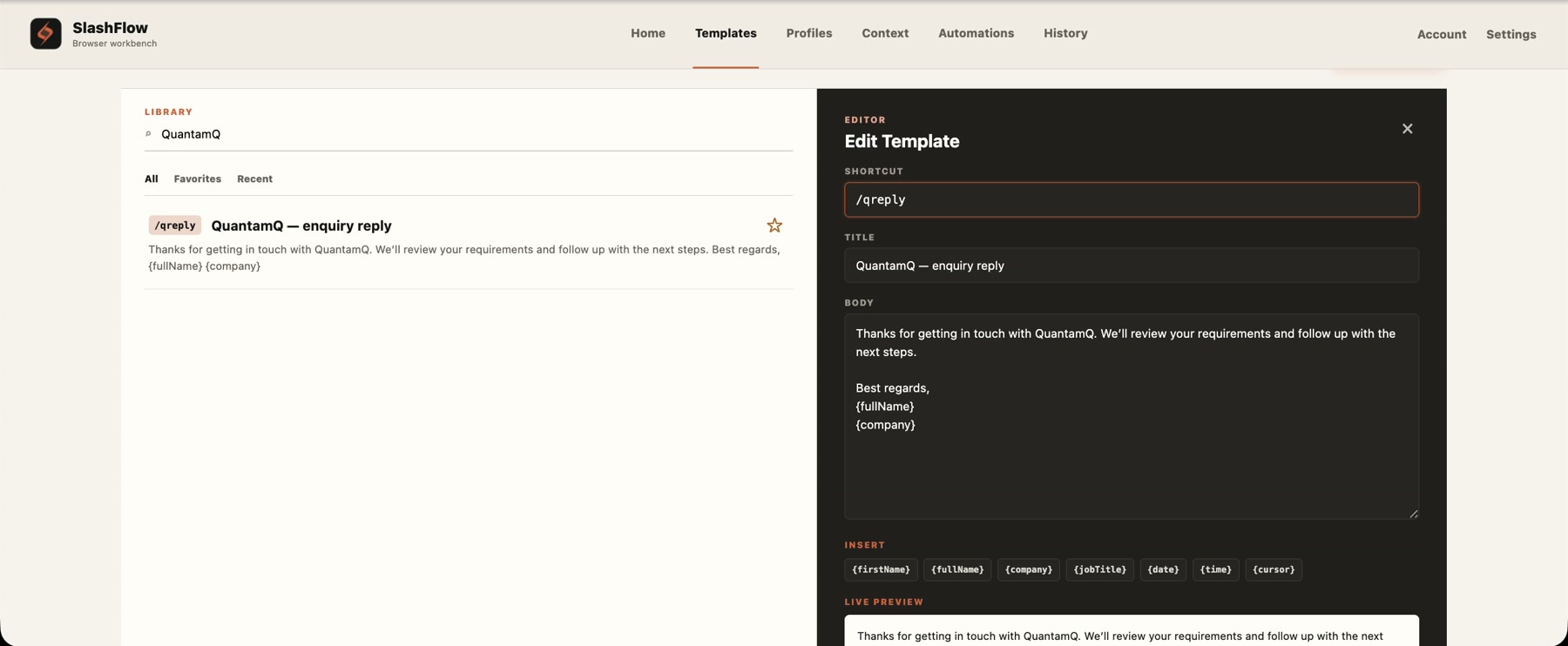
- Open Templates, then + New template.
- Give the message a descriptive Title and a distinct Shortcut, such as
/sfdemorecap,/sfdemoanswer,/sfdemoreviewor/sfdemopause. - Copy only the email body into Body, then select Save template. Set the email subject separately in your mail app.
- In a supported message body, type the saved shortcut with the same letter case. Review the inserted text before using it.
- Replace every bracketed prompt with checked information from that conversation. Remove lines that do not apply.
These examples do not rely on captured profile variables. A contact's name or company alone does not establish what they requested, promised or agreed to. Keep those conversation details under your review.
SlashFlow does not send this follow-up or schedule the next one for you. Some custom editors and browser surfaces do not support expansion. For setup and troubleshooting, use the text-shortcut guide.
Check the finished message before sending
- Recipient and thread: Is this the intended person and the right conversation?
- Accuracy: Did the demo show what the message says it showed? Are open questions still marked open?
- Commitments: Is each date agreed, proposed or estimated—and is that distinction clear?
- Next step: Can the recipient see the one response or action you need?
- Cleanup: Are all bracketed notes replaced, links checked and irrelevant lines removed?
Start with one follow-up you regularly write. Save its structure, then make the final email specific to the conversation. For messages after work has begun, the client project update guide covers progress, decisions and revised delivery dates.
See the feature: Watch the real SlashFlow template demonstration, or read the setup steps.
Product references
Prepared by QuantamQ Solutions Pty Limited, the team that makes SlashFlow. Product instructions checked on 28 October 2026; the email examples are original editorial templates.