 SlashFlow
A useful client project update answers four questions: what has been completed, what happens next, what you need from the client, and when they will hear from you again. If a delivery date depends on an approval, make that dependency explicit instead of presenting the date as settled.
The examples below are starting points for your own messages. Replace every bracketed field and check the actual project status before sending. The brackets are editing prompts, not fields that SlashFlow fills automatically. The templates include a subject line for convenience; save only the message body if you plan to expand it inside an email body.
Choose the update that matches the situation
- Work is progressing as agreed: lead with the completed milestone. Before sending, check that the next step is still current.
- A decision is needed: lead with the exact approval request. Before sending, check the approver, deadline and dependency.
- An estimate has changed: lead with the old and proposed dates. Before sending, check whether the new date is an estimate or confirmed.
- Work is ready for handoff: lead with the deliverable and its location. Before sending, check access, unresolved items and acceptance steps.
You do not need a long account of every task. Give the client enough detail to understand the state of the work and take the next action. Include a link to the relevant deliverable when that is more useful than attaching another copy.
1. Report progress without burying the next step
Use this when a milestone is complete and you can explain the next stage. “Completed” should describe work that has actually been done; it does not mean the client has approved it.
Subject: [Project] update — [milestone] ready for review

Hi [Name],

The [specific deliverable] is ready for your review: [link].

Completed: [What is finished and what the deliverable includes].
Next: [The next task and who owns it].
Needed from you: [One clear action, or “No action needed at this stage”].

I’ll send the next update on [date], including [what you expect to report].

Thanks,
[Your name]
Keep “needed from you” specific. “Please review” leaves the scope open; “Please confirm the three page headings” tells the client what decision you need. If several people are reviewing, identify the person who will consolidate the response.
2. Ask for an approval that affects the next milestone
This version separates the decision from the consequence. Do not imply that a missed response gives you permission to proceed.
Subject: Decision needed for [project]: [specific item]

Hi [Name],

Before I start [next stage], I need your confirmation of [specific decision].

The version to review is here: [link and version/date].
Please reply with [the requested confirmation or consolidated changes] by [date and time zone].

The current plan has [dependent task] starting on [date]. If the review needs more time, let me know so we can agree on the next step and update that plan.

I’ll wait for your confirmation before [the action that requires approval].

Thanks,
[Your name]
Check that the proposed deadline is realistic and matches what you have agreed. Where a time matters, include the time zone. Avoid adding a new commitment just because it appears in a saved message.
3. Explain a revised estimate clearly
State the change early, distinguish what you know from what remains uncertain, and name the next checkpoint. Do not reuse an old date or present a tentative estimate as a promise.
Subject: [Project] — proposed change to [milestone] date

Hi [Name],

I’m writing to update the timing for [milestone]. The earlier target was [previous date]. Based on [confirmed reason], the revised estimate is [new date].

Completed so far: [Confirmed progress].
Still required: [Outstanding work or dependency].
Impact: [The specific affected step; say what is still uncertain].

Please let me know if this proposed change conflicts with [known client dependency]. We can then agree on [a concrete next decision].

I’ll confirm the remaining timing at our next update on [date].

Thanks,
[Your name]
If you cannot support a new date yet, replace that sentence with what must happen before you can estimate it and when you will report back. A clear uncertainty is more useful than a date chosen to fill the blank.
4. Hand over a deliverable without implying acceptance
Delivery, review and acceptance can be separate steps. Use the project's agreed process and keep any remaining work visible.
Subject: [Project] handoff — [deliverable]

Hi [Name],

[Deliverable] is available here: [link and version].

Included: [Files, instructions or other agreed items].
Remaining: [Outstanding items, or “No outstanding items in this handoff” if verified].
Your next step: [Review or acceptance action under the agreed process].

Please confirm that you can open [the relevant files/resource]. For questions about this handoff, contact [person or agreed channel].

I’ll follow up on [agreed date or checkpoint].

Thanks,
[Your name]
Test the link as the intended recipient where possible. A link that opens for you can still require access for the client. Do not describe a milestone as accepted until that acceptance has actually occurred.
Reuse the structure, check the changing facts
Before sending any saved project update, check:
- The client, project name and recipient are correct.
- Each status statement matches the current work, including unfinished items.
- Dates, time zones and version links are current.
- The requested action has a named owner and a clear response.
- All bracketed prompts have been replaced or removed.
- The message does not imply approval or acceptance that has not happened.
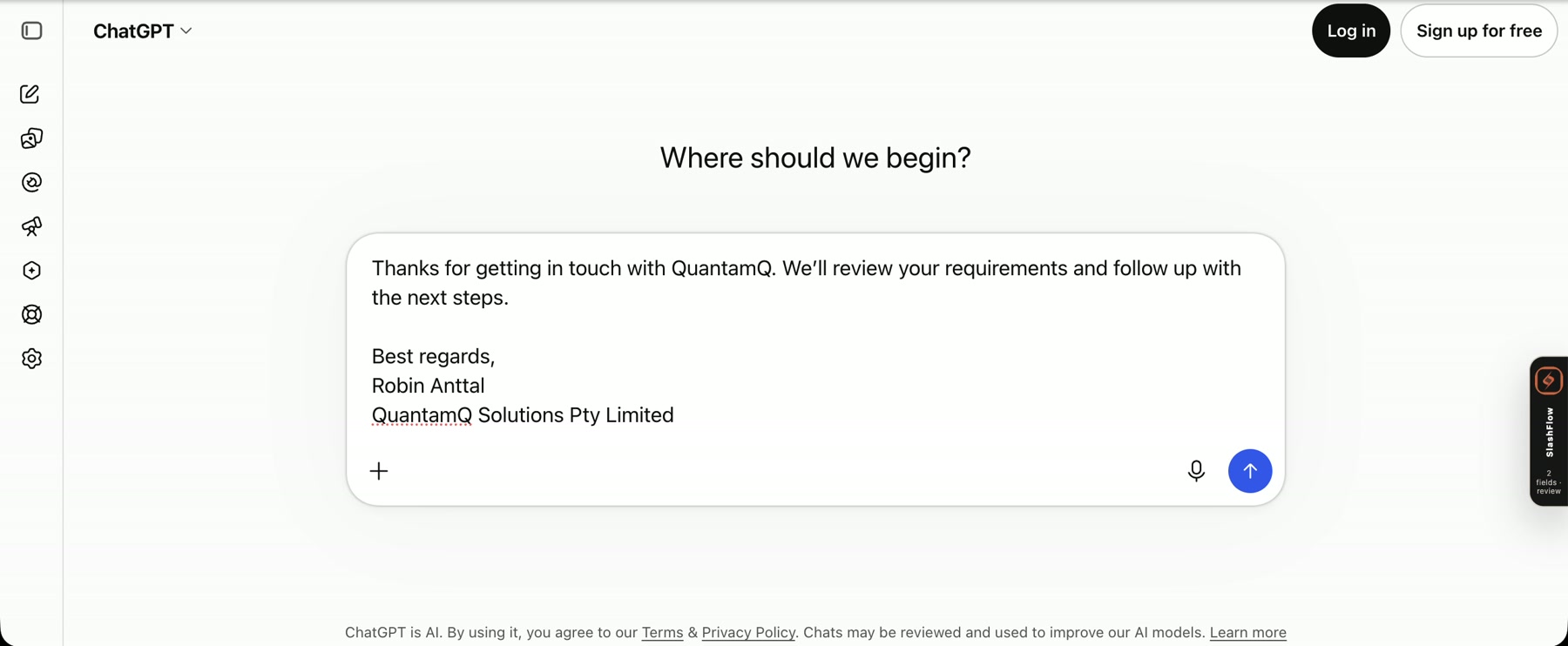
Start with one update you genuinely send often. In SlashFlow, save its body as a template and choose an unused shortcut you can recognise. Test it in a draft in a supported Chrome editor, then personalise it before sending. Keep the subject line separate and check it too.
SlashFlow's template insertion requires active access. It does not turn these examples into a project tracker, obtain client approval, synchronise your deadlines, or send the message for you. Project names, decision requests and dates in these examples must be reviewed and entered by you.
For the setup steps, see how to create text shortcuts in Chrome. If your message concerns a support case rather than a project milestone, use the customer support email guide.
Questions people ask
How often should I send a client project update? Agree on a cadence that fits the project, and send an additional update when a meaningful change affects the client's next decision. Tell the client when to expect your next message rather than promising a frequency you cannot maintain.
What if there is no progress to report? Say what remains outstanding, what is being done about it and when you will check again. Do not manufacture progress or carry an expired completion estimate forward.
Can I reuse the same update for different clients? Reuse the structure, then check the facts and commitments separately for each project. A saved template is a starting point for a message, not evidence of the project's current state.
References and authorship
Prepared by QuantamQ Solutions Pty Limited, the team behind SlashFlow. These are original instructional examples, not customer messages or a record of client outcomes. Product behaviour and public availability checked on 25 October 2026. The image is an approved recorded product example, not a new compatibility test.