 SlashFlow
To use SlashFlow's local writing suggestions, open the workspace's Settings, turn on Writing suggestions — English, and select Save settings. Return to a supported text field in Chrome. When the Writing control shows a suggestion, open it and choose Apply or Ignore. SlashFlow does not automatically replace your words.
This guide is for short everyday drafts: a customer reply, a candidate update or a message to a colleague. The checker covers common English spelling and a small set of grammar patterns. It does not rewrite whole sentences or verify the facts in your message.
Turn the checker on
- Install SlashFlow in desktop Chrome and sign in. Writing suggestions require an active trial, subscription or other valid access. See the current account offer and setup in the quick-start guide.
- Open the SlashFlow workspace and select Settings.
- Enable Writing suggestions — English, then select Save settings. The feature is off by default.
- Return to the draft you want to review. Click inside a supported editable field and type normally. Finish the word with a space or punctuation, then pause briefly.
- If SlashFlow finds a supported pattern, open Writing to see the proposed change. Read the original word, replacement and reason before choosing an action.
Turning the checkbox off and saving Settings disables these suggestions. Websites in SlashFlow's blocked list stay excluded; review that list if the checker is absent on a particular site.
Review a real suggestion
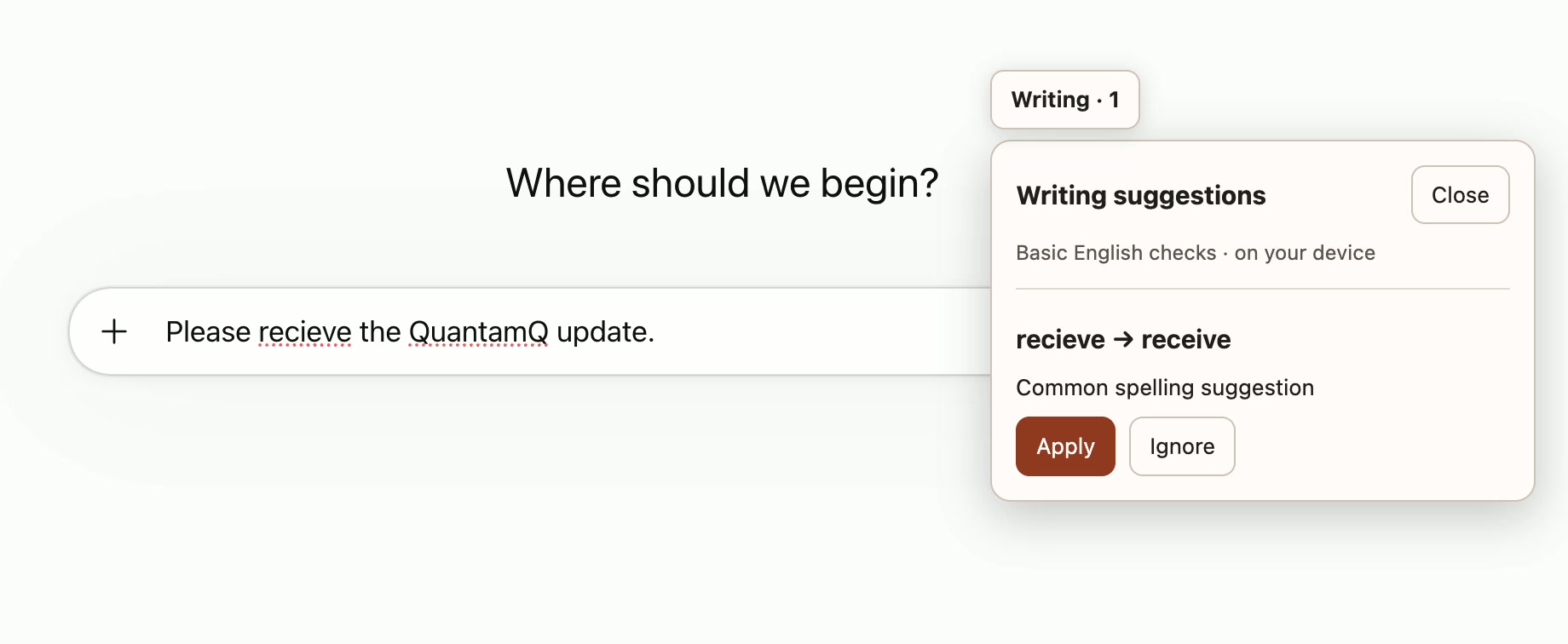
The screenshot shows a recorded product demonstration in a real ChatGPT composer. SlashFlow identifies recieve and proposes receive. The suggestion leaves the company name and the rest of the sentence for you to review.
Use Apply when the replacement fits what you meant. Use Ignore when the original is intentional, such as a quoted spelling or a term the checker does not understand. Ignore leaves the draft unchanged; it is not an instruction to rewrite the sentence another way.
Watch the recorded writing demo to see the setting, the suggestion panel and an explicit Apply action. The demo shows the flow in a real Chrome composer.
Know which checks to expect
Here are examples of the English checks available:
- Common spelling:
recievecan becomereceive. - Repeated words:
the the updatecan becomethe update. - Pronoun capitalization:
i can checkcan becomeI can check. - Simple agreement:
we is readycan becomewe are ready. - Some contractions:
we dont knowcan becomewe don't know.
Read the entire sentence before applying even a familiar correction. A spelling change cannot establish that the recipient's name, a delivery date, a price or an attached file is correct. Technical vocabulary and quoted text may need to stay exactly as written.
Keep control of the draft
Apply changes the reviewed text in the active editor. It does not send the email, submit the message or publish the form. Read the resulting draft before taking that final action yourself.
If you want to reverse an applied change, use the editor's normal Undo command. Undo behavior belongs to the website: an editor may group a correction with nearby typing, so check what it actually restored. If the draft changes while the suggestion panel is open, review the current text again instead of relying on an old suggestion.
SlashFlow runs these writing checks locally and does not send the draft to a grammar service. That is a statement about SlashFlow's checker; the website where you type still handles your input under its own behavior and policies. Local checking is not a promise that an online editor keeps your message offline.
If no suggestion appears
Check the setting and access. Confirm that the checkbox is enabled, Settings was saved, and your SlashFlow account has active access.
Finish the word. The checker avoids correcting a word you are still typing. Add a space or punctuation and pause before looking for the Writing control.
Check the field and website. Not every Chrome field or rich-text editor is supported. Blocked websites are excluded. After installing or updating the extension, save your work and reload the page before trying again.
Try a shorter passage. The checker deliberately limits how much text it analyzes and how many suggestions it shows at once. A long draft or complicated formatting can be outside its supported scope. Review a shorter passage manually; do not assume silence means the draft is error-free.
Consider the kind of issue. A natural-sounding but incorrect sentence, specialist term or unsupported grammar pattern may produce no suggestion. SlashFlow is a basic local helper, not a full proofreading or sentence-rewriting service.
If the problem persists in an ordinary supported field, contact support@quantamq.com with the website, composer mode, extension version and what happened. Keep private draft text out of the report unless you deliberately choose to share a minimal, non-sensitive example.
A useful final check for reusable replies
Save stable wording as a template, expand it when needed, then review the actual message in front of you. Writing suggestions can help catch a common slip, while you check the details a spelling rule cannot know:
- Is this the right recipient, name and company?
- Does the reply address their actual question?
- Are the dates, amounts, next step and attachments correct?
- Does each suggested change preserve the intended meaning?
The text-shortcuts guide shows how to save a reply. The customer-support template guide offers wording you can adapt. Keep the final review and send decision with you.