 SlashFlow
A useful customer-support reply names the customer’s problem, explains what happens next and asks for only the information needed to continue. The six original examples below cover common situations. Adapt them to the actual case and your company’s process before sending.
You can copy these examples into any email draft. To reuse them with SlashFlow, save the body as a template and give it a distinct shortcut. Text in square brackets is a manual editing note, not a SlashFlow variable. Replace every bracketed note before you send.
Choose the reply that matches the case
- Acknowledge a new request when you have read it and can explain your next check.
- Ask for specific details when one missing fact prevents the next step.
- Give a progress update when the investigation is open and there is no confirmed fix.
- Follow up without a reply when you still need the customer’s input.
- Explain a handoff after the receiving person or team has accepted the case.
- Check a proposed resolution when a change is ready for the customer to try.
A template is a starting point for a reply. It does not establish that a task was completed, approve a refund or change the status of a ticket.
Six replies to save and personalize
Personalize the reply without rewriting everything
Keep the structure, then change the parts that belong to this conversation: the customer’s name, the exact symptom, the work already completed and the next responsible person or action. Read the previous messages before asking another question.
For example, replace “Could you send more details?” with “Does the error appear when you save the template, or when you type its shortcut?” The second question separates two different failures without asking the customer to repeat the whole story.
Before sending, search the draft for [ to catch unfilled notes. Check names, links, attachments and any commitment to a date. If the case involves a refund, complaint or access decision, use your approved process rather than inventing a policy inside a reusable reply.
Use a saved reply in Gmail with SlashFlow
Save one useful reply
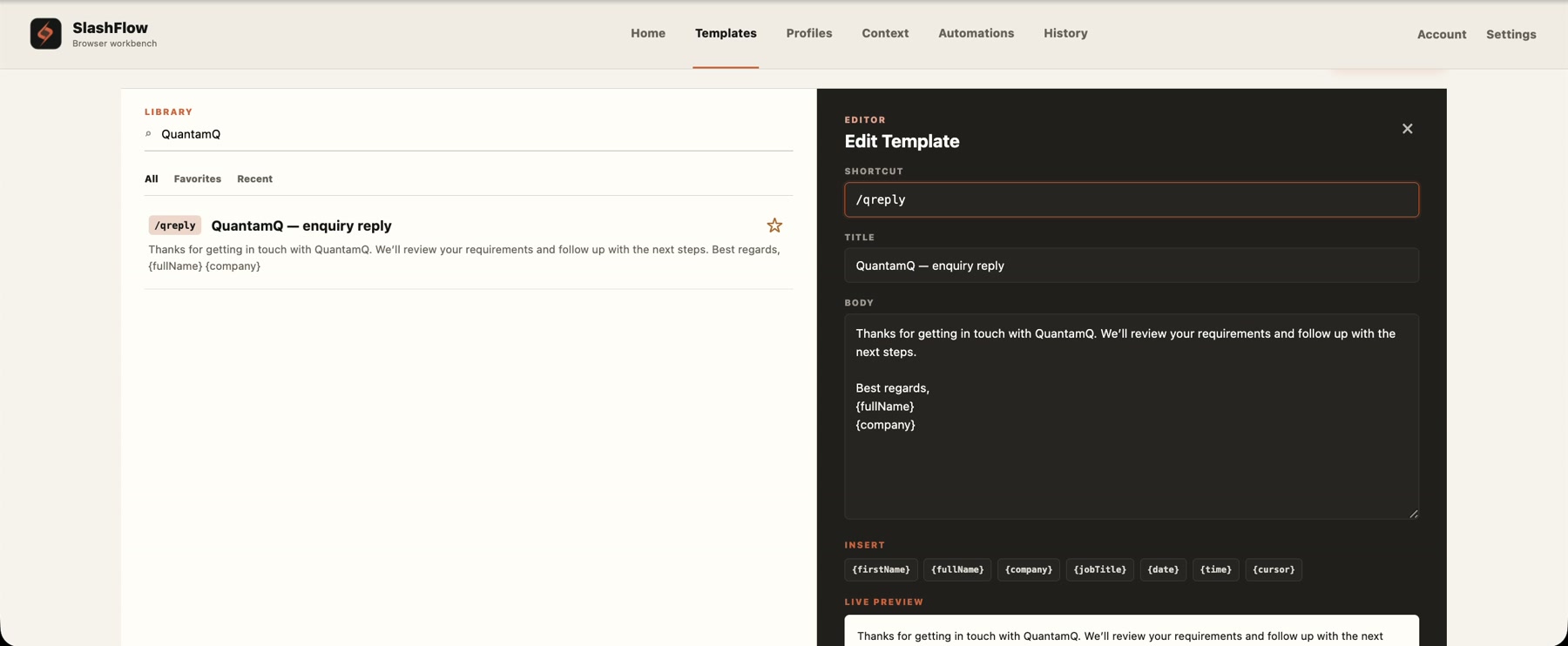
In the SlashFlow workspace, open Templates → + New template. Enter a shortcut such as
/sfrepro, a descriptive title and the reusable message in Body. Select Save template. Keep subject lines out of the body unless you intentionally want them in the message.Try the shortcut in a draft
In desktop Gmail using Chrome, open a new message or reply and click in the editable message body. Type the shortcut exactly as saved; a matching shortcut expands as you finish typing it. Try it in a draft first, away from text you need to preserve. The text-shortcuts guide covers setup and troubleshooting.
Review before sending
Replace the bracketed notes, remove irrelevant questions and read the complete message with any existing draft text. SlashFlow inserts text; it does not send the email or confirm a ticket action for you. Send from Gmail only when you are ready.
Use the same letter case as the saved shortcut, and avoid making one shortcut a prefix of another. These six suggestions use distinct endings. Some browser fields and custom editors are unsupported; browser address bars, Chrome settings and password fields are not places to expand these replies. If an existing Gmail tab loses its page connection after an extension update, preserve your draft and reload the page.
Gmail also has its own message templates on computers. If you only need saved email replies there, Google’s Gmail template instructions explain that built-in option. SlashFlow’s templates can also be reused in other supported browser fields; it is not a shared help-desk inbox or ticketing system.
Watch a saved shortcut expand in the real ChatGPT composer →
Keep a small library you can trust
Start with the two replies you use most. Give each a title that describes the situation, then update the wording when your process changes. Remove outdated links, product names and promises. Keep case-specific information in the current conversation rather than in a template you might reuse for someone else.
For a new SlashFlow account, follow the Quick start guide. Text expansion needs an active trial or subscription. First-time eligible accounts can start a 14-day trial with a card; then $3.49 USD/month including applicable tax, automatically renewed unless canceled. Cancel in Account before the trial ends to avoid a charge. Existing subscriptions keep their current plans.
Save the reply you need next
Choose one example, make it sound like you and try its shortcut in a draft.
Set up SlashFlow →