 SlashFlow
When switching text expanders, keep a recoverable copy of your authorised library, recreate five representative templates, and test them in the editors you actually use before moving the rest. A successful import or a familiar-looking preview does not establish that variables, formatting and shortcuts behave the same way.
This checklist is for someone who already has useful saved replies and wants to try another tool without carrying old names, stale commitments or broken formatting into the new library. You can use the worksheet with any text expander. The SlashFlow steps below cover manually recreating a template, not importing another product’s library.
1. Keep a copy you can recover
Start with the library you are permitted to use. If it belongs to your employer or a shared team, confirm what you may export or recreate. Use the existing tool’s documented export process where available, and check that you can read the resulting file before changing the original library. Keep the copy in an approved location.
Record the shortcut, title and message body, plus anything the body relies on: a recipient variable, a date calculation, a linked snippet, formatting or an action. Remove customer-specific examples from your test copy. Do not delete the old library or cancel access needed to recover it before you have checked your replacement workflow.
File formats are product-specific. Magical documents a CSV import that maps trigger and body columns. TextExpander documents its own import and export formats. Neither document establishes that those files or their dynamic elements work in SlashFlow. Check the source and destination separately.
2. Choose five templates that test different things
Do not choose only your five shortest replies. Pick examples that expose different failure points, and write down the result you expect before testing. These are suggested test cases, not results from a completed migration:
- A plain acknowledgement. Use one short paragraph. Pass when the exact wording appears once, at the intended position, with the surrounding draft intact.
- A longer follow-up. Include several paragraphs and a closing line. Pass when the full body and paragraph breaks survive in your destination editor.
- A recipient-dependent greeting. Identify where the name comes from. Pass when the correct current recipient is used, or the name is deliberately entered manually. An old name or unresolved token is a failed check.
- A message with a link or list. Check the actual destination URL and the meaning of the list. If rich formatting does not transfer, test a clear plain-text version instead; do not assume appearance in the preview proves compatibility.
- A date or commitment. Include a next step that changes between conversations. Pass when the message reflects the current agreement, with no copied deadline or unapproved promise.
Download the five-template migration worksheet (CSV) →
The download is an original planning worksheet with five fictional starter rows, not a SlashFlow import file. Open it in a spreadsheet or text editor. Replace the examples with non-sensitive descriptions; record your actual editor, result and decision. Every starter result is “Not tested”.
3. Recreate one template before doing the rest
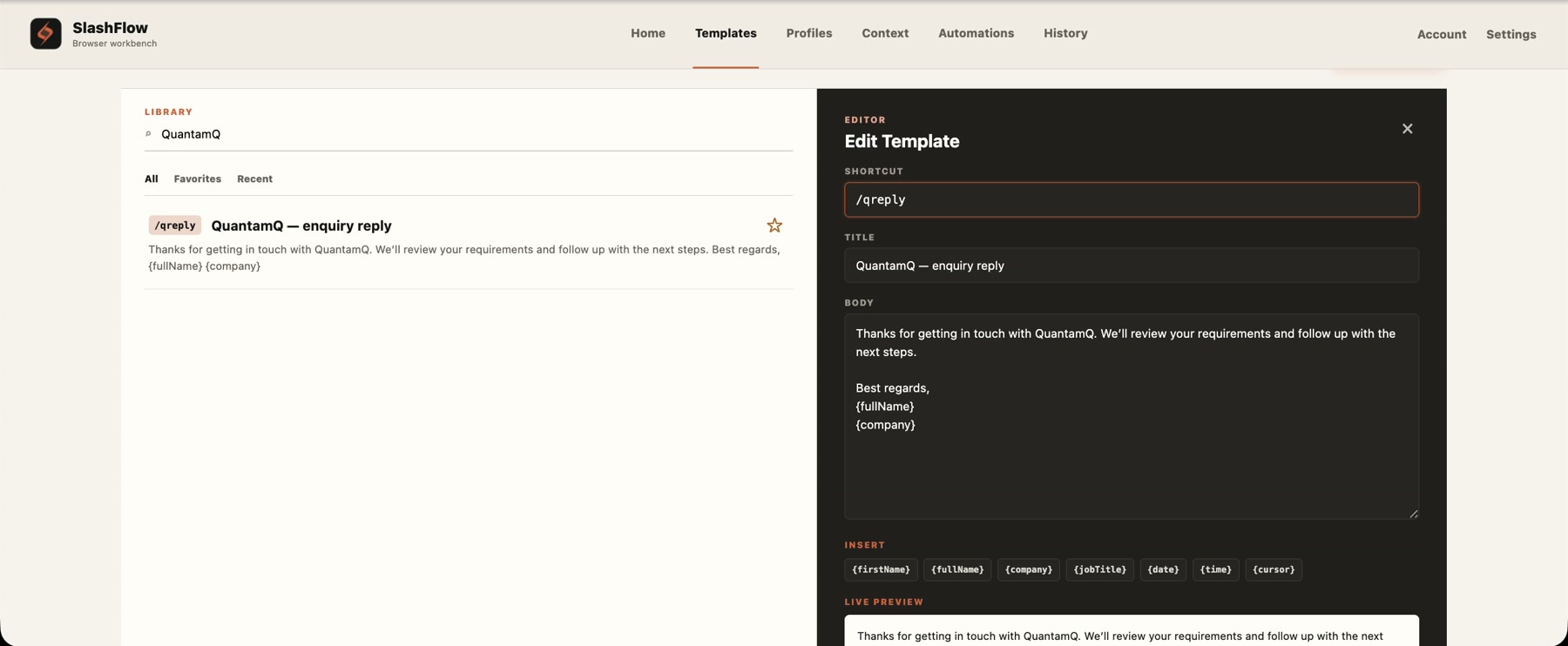
For a manual SlashFlow trial, open the workspace’s Templates area and choose + New template. Enter an unused Shortcut, a useful Title and the reviewed message in Body, then select Save template. See the text-shortcut setup guide and recorded template demo for the existing workflow.
Use a distinct trial shortcut, such as /sftrialack, after checking that neither tool already uses it. Keep the old shortcut different while comparing the two tools. If both respond to the same typing, you cannot tell which produced the result. Do not treat disabling an extension or signing out as cancelling a subscription.
Copy the wording first. For variables or other special elements, use the destination’s documented behaviour or replace them with explicit manual steps. SlashFlow’s support for profile variables does not imply that another tool’s variable syntax, scripts or date functions will transfer.
4. Separate reusable wording from yesterday’s facts
Consider this fictional saved reply:
Hi Morgan,

Thanks for the update. I’ll send the revised proposal by Friday.

Best,
Alex
The wording is readable, but Morgan’s name and Friday’s promise belong to a particular conversation. Moving the body unchanged can preserve the wrong facts perfectly. A safer test version makes the changing details visible:
Hi [recipient],

Thanks for the update. The next step is [agreed action].
[Add a deadline only if it has been agreed.]

Best,
[sender]
The square brackets are manual editing prompts, not SlashFlow variable syntax. Replace or remove every prompt before sending. If no action is agreed, rewrite the sentence as a question instead of presenting a proposal as a commitment.
For the worksheet, record this result as “Revise” until you have checked a second fictional recipient and a different next step. One correct expansion can still conceal a fixed name or date. Keep a note of which details require human review even after the wording passes.
5. Test in an unsent draft, then make a decision
SlashFlow requires active access and works in supported Chrome fields. Use the actual destination editor with non-sensitive test text. Insert the trial shortcut between two existing sentences, then inspect the full result. You do not need to send a message or submit a business form to test expansion.
- Did the intended template appear once, with no remaining shortcut or unresolved token?
- Are both surrounding sentences intact, with the inserted text at the intended position?
- Are names, paragraph breaks, list meaning and link destinations correct?
- Does the message reflect the current recipient and agreement?
- Can you continue editing normally and correct the result before sending?
Record the editor and date checked. A successful result in one field is not proof that another site, rich-text editor or embedded composer is supported. If a check fails, keep that template in the old workflow or use a manual fallback while you investigate.
Give each template one decision: Keep after passing the relevant checks; Revise when wording or formatting needs work; Manual when a step must remain outside the shortcut; or Retire when the message is no longer useful. “Retire” is a planning decision, not an instruction to automatically delete the source.
Move one routine workflow first. Keep the recoverable copy and a note of the working shortcuts until you are comfortable with the replacement. Expand the migration based on what passed, not just how many rows you copied.
Common questions
Does exporting a CSV preserve every template feature?
Do not assume it does. Inspect what the source exported and what the destination accepts. Wording, formatting, variables and automated actions are separate things to check.
Can I import my Magical or TextExpander library into SlashFlow?
This guide does not establish an automatic library import. It describes recreating selected message bodies through SlashFlow’s template editor and testing them. Its downloadable CSV is a checklist, not a supported import format.
Should I run both text expanders at once?
During a small test, distinct shortcuts can help you compare results without triggering the same abbreviation in both tools. Check your organisation’s extension rules and stop if the tools interfere with the editor. Keep a recoverable library whichever test arrangement you choose.
Start with one reply you already use
Watch the recorded SlashFlow template workflow, then recreate one short, non-sensitive message and review it in a supported Chrome editor.
Watch the template demo →Sources and scope
- Magical Help: Create Templates with a CSV upload, checked 19 November 2026.
- TextExpander: Importing and Exporting Snippet Groups, checked 19 November 2026.
- SlashFlow’s text-shortcut setup guide and approved template recording.
Written by QuantamQ Solutions Pty Limited, the maker of SlashFlow. The five-case test plan, worksheet and message examples are original teaching resources. They are not customer results, a compatibility benchmark or a promise of automatic migration.