 SlashFlow
Review one profile, confirm it into your CSV collection, then download and inspect the collection before importing it elsewhere. Check that each row still describes the same person and that missing information stays missing. A successful collection action and a usable spreadsheet are two separate checks.
This guide is for a small set of profiles you are already reviewing for your work. SlashFlow's workflow features include collecting reviewed profile records for CSV. The useful habit is to keep a visible review step between the source page, the collection and the file you will use.
Start with one complete, reviewed record
Open the supported profile you intend to use and review its captured details in SlashFlow. Check the person's name, role, company, location and profile URL together. A title from one role and a company from another can look plausible while describing the wrong relationship.
Correct a value only when the same visible profile supports the correction. Leave a field blank when you cannot establish it. A missing location is easier to investigate later than a confident-looking location copied from a different person.
For the capture and identity checks, use the profile-review guide. Continue here once you have a record you are prepared to keep.
Collect the profile before downloading the file
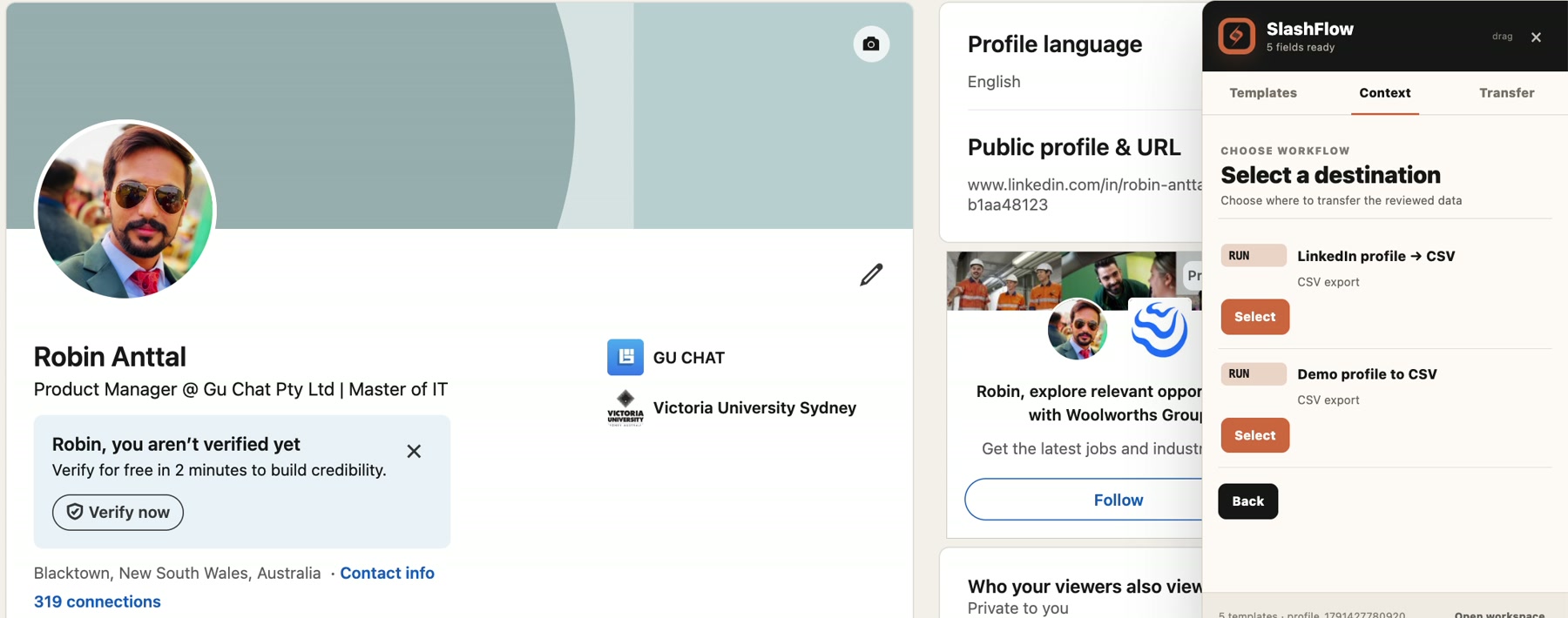
In the page workspace, open Context, choose Choose workflow, and use Run workflow for your CSV destination. In Review captured data, check the available fields, select Continue, then inspect the source, destination and selected-field count before Confirm Transfer. Repeat the review for each additional profile you need.
Keep a short note of the records you intend to include. This can be a list of source URLs and the purpose of the export. It gives you something to compare against the downloaded file without assuming every click produced a new record.
In SlashFlow's dashboard, find the CSV workflow and its CSV Collection count. The collection may contain records from earlier work, so check its existing state before treating the displayed number as today's total. Selecting or confirming a CSV workflow is not, by itself, evidence that a file has been downloaded.
Use Download CSV for the collection and complete the browser's save step. Then locate the saved file. Keep the original download while you inspect a working copy, so you can distinguish the exported data from later spreadsheet edits.
Check the structure before using the rows
The profile collection uses seven columns:
- Full Name: The name belongs to the source profile you reviewed.
- First Name: If present, the value matches that person's reviewed details. A full name does not guarantee this separate cell is populated.
- Last Name: If present, it belongs to the same person. Keep missing or uncertain information blank until verified.
- Job Title: The role and company describe the same relationship.
- Company: The value is supported by the profile, not inferred from unrelated text.
- Location: A place containing a comma stays in one cell after import.
- Profile URL: The URL leads back to the record's intended source.
Separate first-name and last-name cells can be blank even when Full Name is populated. Inspect them before a downstream task requires split names; do not fill a missing field by assumption.
Compare the number of data records with your review list. Exclude the header from your count. If text contains line breaks, count parsed records rather than the raw number of lines in a text editor.
Inspect complete rows, not just individual columns. A tidy column of names does not show whether the roles, companies and URLs still belong to the right people. For a small export, checking every row is practical; for a larger collection, decide how you will verify the full set before using it for downstream work.
A two-record review exercise
This is a fictional worksheet for illustrating checks, not a real capture, customer record or demonstrated SlashFlow export. The example URLs are placeholders.
Fictional record 1
Full Name: Alex Example
First Name: Alex
Last Name: Example
Job Title: Account Manager
Company: Example Co
Location: Sydney, Australia
Profile URL: https://example.com/profiles/alex
Fictional record 2
Full Name: Sam Example
First Name: Sam
Last Name: Example
Job Title: Project Coordinator
Company: Example Co
Location: (blank)
Profile URL: https://example.com/profiles/sam
There are two useful checks here. First, Alex's location includes a comma, but it should still occupy one location cell after import. Second, Sam's location is deliberately blank. Filling it with Alex's location would make the worksheet look more complete while making it less reliable.
The source URL gives you a way to review an uncertain row. In your real file, compare that URL and its visible profile with the row's other values. Do not treat a neighbouring row as evidence for a missing detail.
Preview the spreadsheet import
Use your spreadsheet application's import preview to check the delimiter, column boundaries and text values before loading the file. If everything appears in one column, inspect the import settings before manually splitting or rewriting the data.
Microsoft explains that opening a CSV directly in Excel uses its default data-format settings. In supported Excel versions, Data → From Text/CSV offers an import path where you can inspect the preview and change the delimiter; use the available type controls when a column is being interpreted incorrectly. Follow Microsoft's CSV import guidance for your version.
After import, compare at least one complete row and a row containing punctuation or a blank value with the original file. Check that the headings and record count still match. Save your reviewed working file separately from the original download.
Resolve mismatches at the right step
- No collected records are available: Confirm that an individual reviewed profile was added, rather than only selecting a workflow.
- The total differs from your review list: Inspect earlier records and repeated source URLs. Do not assume one action always means one additional row.
- A location is split across columns: Inspect the CSV import preview and delimiter handling before editing the source values.
- A field is blank: Return to the same profile and check whether the information is actually supported. Keep uncertainty visible.
- The downloaded file looks correct but the destination does not: Compare the file with the imported result. Download and destination import are separate steps.
You do not need to clear an existing collection just to troubleshoot a count. First establish which records it contains and preserve the file you are checking.
A final check before handoff
Before using the spreadsheet, confirm the intended records, seven headings, complete row relationships, retained blanks and source URLs. Record when you reviewed the file if someone else will use it later; profile details can change after an export.
Use the SlashFlow quick start to set up the underlying capture-and-review workflow. If the current collection or download behaves differently from this guide, contact support@quantamq.com with the step and visible result, keeping private records out of the message.
Product references and scope
Prepared by QuantamQ Solutions Pty Limited, the team that makes SlashFlow. On 1 November 2026, we checked one approved real profile through review and confirmation into an existing two-record collection, then saved and parsed the actual CSV. This does not establish universal duplicate handling or a native spreadsheet integration. Spreadsheet import was not part of that product check. The two-record worksheet above is an original fictional teaching example.
- SlashFlow features
- SlashFlow quick start
- SlashFlow on the Chrome Web Store
- Microsoft: Import or export text and CSV files — spreadsheet guidance checked 2 November 2026.