 SlashFlow
Before you reuse LinkedIn profile details, confirm the person and profile URL, check the job title and company together, and compare the location with the profile itself. Correct uncertain fields or leave them blank. A filled field is a starting point for review, not evidence that every detail is current.
This checklist works whether you copy a few details manually or use SlashFlow's Context panel. It is useful before adding someone to your working notes, preparing a handoff or personalizing a draft.
Check five fields before you use them
Full name
Compare: The name on the open person's profile.
Correct: A name from another tab, a suggested profile or a company page.
Job title
Compare: The relevant current role in Experience.
Correct: A whole headline, qualification or role that has ended.
Company
Compare: The company attached to that same role.
Correct: A school, former employer or company attached to a different role.
Location
Compare: The location stated on the person's profile.
Correct: A company office address or a location assumed from the employer.
Profile URL
Compare: The profile you are actually reviewing.
Correct: A search-results link, company page or another person's URL.
Start with the name and URL. A plausible title and company still belong to the wrong record if the profile has changed. Keep the person's displayed name intact rather than guessing how it should be split.
Keep the job title and company together
A headline can contain more than a job title. It may combine a role, employer, qualification and a description of someone's work. Read it for context, then compare the role with Experience before using it as a structured field.
LinkedIn says its introduction normally draws the current position and company from Experience. People with multiple current positions can choose which one appears as their primary position. That makes the introduction useful, but it does not settle which role is relevant to your task. LinkedIn's explanation of current positions describes how this works.
If there are two current roles, keep each title with its own company. Do not combine the title from one role with the company from another. If you cannot establish the relevant pairing, leave those fields blank and note what needs checking.
The same approach applies to location: use the profile's stated location for a person record. Do not substitute a company headquarters address or infer where the person works from the employer's name.
A real example: separate employer, education and headline
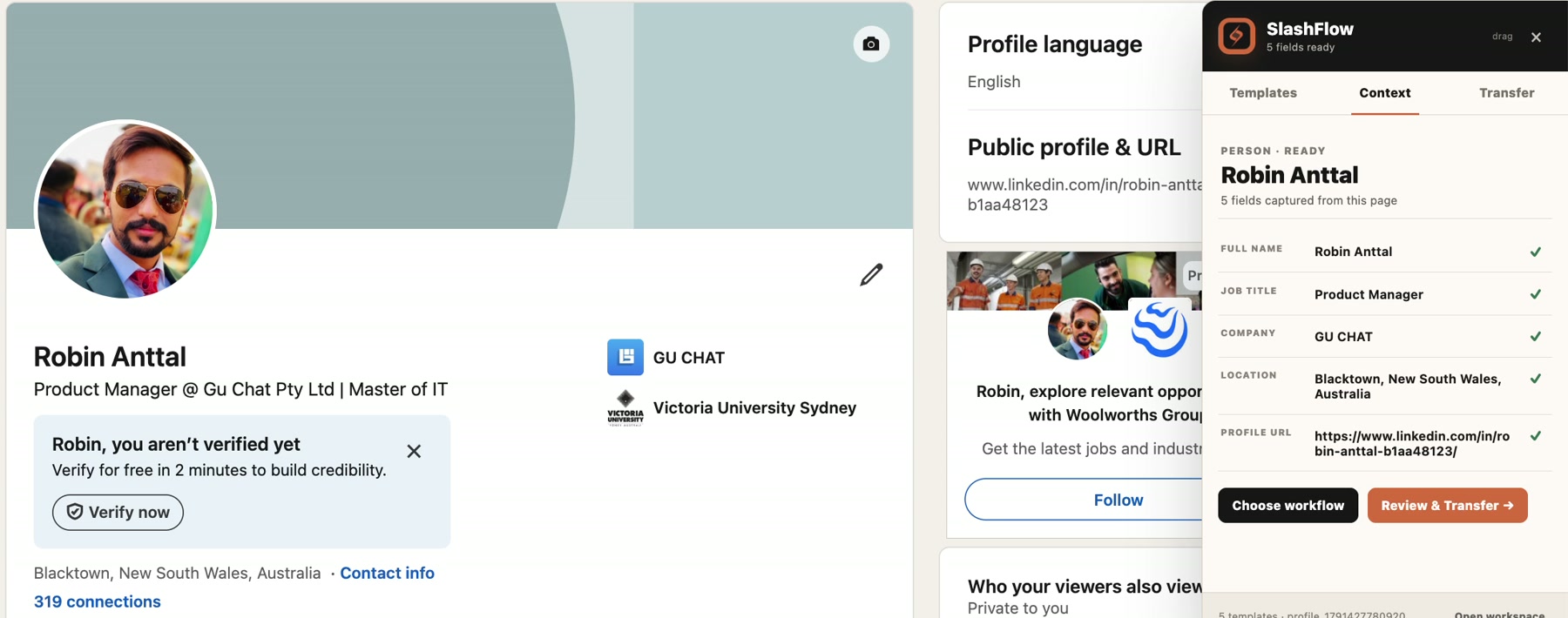
In this screenshot, the headline includes “Product Manager” and “Master of IT”. The introduction also shows GU CHAT and Victoria University Sydney. SlashFlow's panel separates the captured role, company and location into fields you can review.
The checks are specific: the qualification is not part of the job title, and the university should not replace the employer. The recorded Company value is GU CHAT. Before reusing that pairing today, open the profile and compare it with the current Experience section. The screenshot alone cannot establish whether the role has since changed.
Review the fields in SlashFlow
With SlashFlow installed in desktop Chrome and access active, open the person's supported LinkedIn profile and bring up Context. Compare the captured details with the profile before transferring them.
- Check that the name and Profile URL belong to the person on the page.
- Select Review & Transfer →. The review screen lets you correct values or clear unavailable information.
- Check the title and company as a pair. Review location separately, and leave missing details blank unless you can verify them on the source.
- Choose the workflow you want to use and review its destination and action before continuing. If a workflow was already selected, the next button is Continue →.
- Inspect the resulting text, file or mapped form before using it. Check that the destination's field names mean what you expect them to mean.
Available fields depend on the page and what it exposes. Review is part of the workflow even when every field is filled. If you switch to a different person, start from that profile's capture and repeat the identity check.
SlashFlow supports reviewed workflows such as clipboard output, CSV and mapped forms. These are different actions: a copied note is not a saved CRM record, and a filled form still needs your review and submission. Choose the workflow that matches the task. See the available feature workflows.
Keep a short source note with the details
When handing a record to a colleague, keep the source and review date alongside it. This makes it easier to revisit an uncertain field later. You can copy the following structure into your own notes:
Person: [name as displayed]
Profile: [profile URL]
Role and company checked: [paired details, or leave blank]
Location stated on profile: [location, or leave blank]
Reviewed on: [date]
Still to verify: [specific missing or conflicting detail, or none]
The brackets are manual prompts, not SlashFlow variables or an automatically generated audit record. Replace them yourself. Include only details needed for the work.
If you also use saved-profile variables in templates, check which saved profile is active before expanding a message. Captured page context and your saved profile are different inputs; opening a LinkedIn profile does not mean every template variable now refers to that person.
What if a field is missing or looks wrong?
The company is blank. Compare the role with Experience. Add the company in review only if the source supports it. A blank field is preferable to a guessed employer.
There are several current jobs. Choose the role relevant to your task and keep its title and company together. Record the ambiguity if you cannot decide from the available information.
The page or person has changed. Review the new profile's capture rather than reusing the previous record. Check the name and URL again before transferring anything.
The destination looks right, but a value is wrong. Correct it before saving or submitting. Moving data into a form does not verify that data.
For a visible walkthrough, watch the real Context demo. New to SlashFlow? The quick-start guide covers installation and setup.