 SlashFlow
An interview invitation should tell the candidate which role you’re discussing, who they’ll meet, how long to set aside and what to do next. Match the request to the state of the booking. Ask someone to choose a time while you’re arranging the interview. Send joining details once you’ve agreed on a slot. If the time changes, tell them exactly what happened to the old invitation.
1. Offer two interview times
Subject — Interview times for [role] at [company]
Hi [name],

We’d like to invite you to a [duration] [video / phone / in-person] interview for [role]. You’d meet [interviewer and role] to discuss [what the conversation will cover].

Would either of these work for you?

• [Weekday, date, start and end time, time zone]
• [Weekday, date, start and end time, time zone]

If another time would work better, please send a couple of windows and your time zone. I’ll confirm the booking and send the joining details.

[Recruiter name]
Offer slots you can still book. If the candidate replies after a slot has gone, give them fresh options before sending an invitation. A candidate who says “either time works” still needs to know which one you chose.
2. Confirm the slot and give the candidate what they need to join
Subject — Confirmed interview for [role] on [day and date]
Hi [name],

We’re booked for [weekday, date, start–end time, time zone]. You’ll meet [name and role] for [interview format or topic].

[Video: include the candidate’s joining link. Phone: say who will call whom. In person: give the venue, entrance and check-in instructions.]

[Say what to prepare, or omit this line.] If you have trouble joining or need to change the time, reach me at [monitored contact].

[Recruiter name]
Open the actual event before sending. Compare its date, duration, guest list and joining instructions with the email. An interviewer’s calendar hold alone may leave the candidate without an invitation. For example, Greenhouse documents a scheduling flow with a separate candidate confirmation step. Greenhouse candidate confirmation guidance
Worked example. A Sydney recruiter books a 30-minute video interview at 10 am on Tuesday 17 November 2026. For a candidate in Los Angeles, it starts on Monday 16 November at 3 pm. A line the recruiter could send is “Monday 16 November, 3:00–3:30 pm in Los Angeles (PST), which is Tuesday 17 November, 10:00–10:30 am in Sydney (AEDT).” Copying “Tuesday” onto both times would put the candidate a day late.
Use the candidate’s stated time zone. A profile location can be out of date, especially while someone is travelling. Check the conversion for the actual event date. Google Calendar displays an event in each guest’s configured time zone, while a time typed into an email stays as written. Google Calendar time-zone guidance
3. Replace an interview that has to move
Subject — Time change for your [role] interview on [original day]
Hi [name],

We need to move your interview originally scheduled for [original day, date, time and zone]. I’ve cancelled the original invitation. I’m sorry for the disruption.

Could you meet on [new option A with zone] or [new option B with zone]? [Mention any change to duration, format or interviewer.] If neither works, please send a window that suits you. I’ll send the updated invitation once we agree.

[Recruiter name]
Use the cancellation sentence only after you’ve cancelled the event. If the candidate requests a change and the old booking is still active, acknowledge its actual status: “I’ve received your proposed time. The original booking is still on the calendar. I’ll check with the panel and confirm by [day, time and zone].” Once you agree, update the event and send the revised joining details. Greenhouse notes that a downloaded calendar file does not receive updates. If the candidate imported one, send a replacement file and ask them to remove the old entry. Google Calendar lets a guest propose a time and the organizer review and save the change. Google’s guide to proposed times
Reuse the wording in SlashFlow
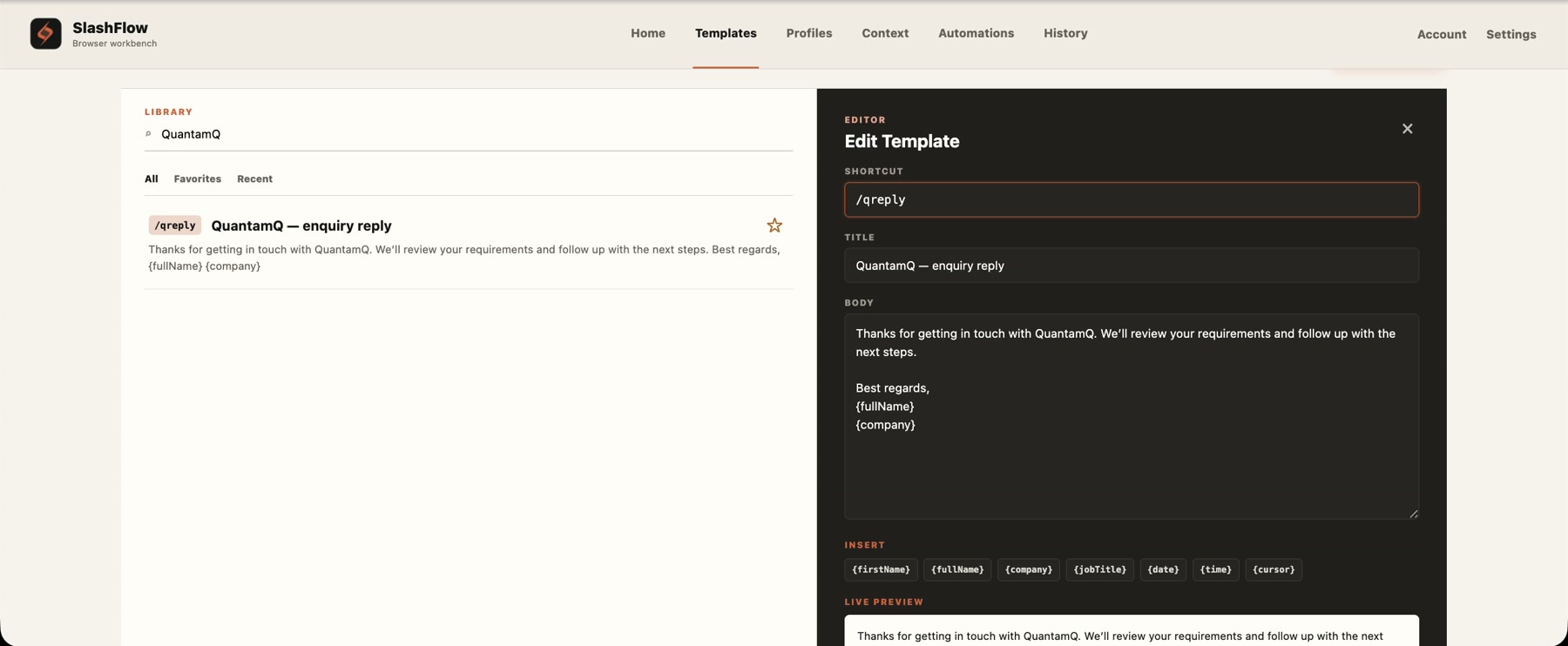
The three emails work as plain text. To reuse one in desktop Chrome, open Templates → + New template in SlashFlow, save the body and give it a distinct shortcut such as /interviewconfirm. Keep the subject separate so it goes into the email’s subject field. Test the shortcut in a supported draft field. Replace each bracketed instruction by hand, including the joining link, and reread what the candidate will receive. Keep names, dates and private meeting links out of the saved master.
SlashFlow’s text expansion requires a Google account and active access. You handle the calendar change and send the invitation yourself. The recorded demo shows a saved template, its preview and its insertion in a draft. For a hiring decision that is still pending after the interview, use the separate candidate-update examples. SlashFlow demos · Recruiter follow-up templates
References and authorship
QuantamQ Solutions Pty Limited, the team behind SlashFlow, wrote the three templates and the Sydney–Los Angeles example. The scheduling guidance draws on the Greenhouse and Google Calendar documentation linked above. See the current SlashFlow features for supported browser workflows.